
Shader 2: a fractal
Your own functions, if and loops inside the GPU, drawing the Mandelbrot fractal.
You already know how to decide with if, repeat with loops, write your own functions and move things with time. Now you are going to put it all together in a more ambitious shader: each pixel will run a loop of up to 100 turns, and with that you will draw this:
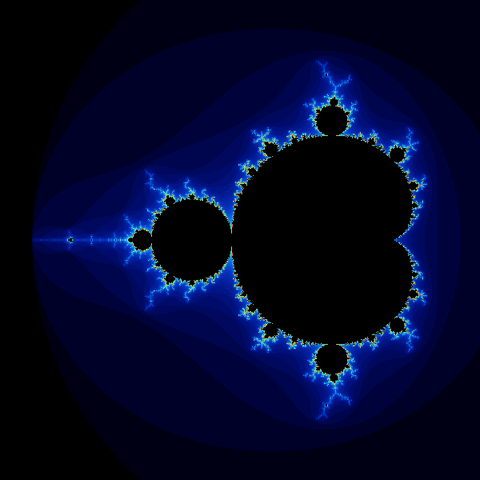
It is called the Mandelbrot fractal. The curious thing is that there is no image stored anywhere: that whole drawing comes from a two-line formula, repeated many times.
There is no new C# in this chapter. It is proof that what you learned in the previous ones is enough to draw something as complex as this.
The idea, without the math#
For each pixel we do the following:
- We take two numbers that depend on where the pixel is. We will call them
cxandcy. - We start with two other numbers,
xandy, at zero. - We apply a formula that changes
xandy, usingcxandcy. And we apply it again. And again. - With some pixels,
xandyalways stay small, no matter how many turns we take. With others, they grow without stopping and "escape". - We count how many turns each pixel lasted before escaping. That number decides its color.
The pixels that never escape are the black shape. The ones that escape quickly are the dark background. And the ones that take a while to escape form the bright edges.
That is all. You do not need to understand why the formula produces that drawing. What we care about is how it is written.
Step 1: counting the turns#
This is the function that does the turns. It is normal C#:
public static int CountSteps(float cx, float cy)
{
    float x = 0f;
    float y = 0f;
    int steps = 0;

    while (steps < 100)
    {
        float newX = x * x - y * y + cx;
        float newY = 2f * x * y + cy;
        x = newX;
        y = newY;

        if (x * x + y * y > 4f)
        {
            break;
        }

        steps++;
    }

    return steps;
}
Read it from top to bottom:
- The
whiletakes at most 100 turns. - The first two lines inside the loop are the formula. They calculate the new
xandyfrom the previous ones. - The
ifchecks whether the point has already escaped. If so,breakcuts the loop. - If not, we add one turn and carry on.
The function returns how many turns it took. If it returns 100, the point never escaped.
Look at what is here: a while, an if, a break, an int and a ++. All of that works inside the GPU.
Step 2: from the pixel to cx and cy#
CountSteps needs two numbers for each pixel. We get them from Uv, which you already know: it goes from 0 to 1.
The drawing of the fractal lives between -2.2 and 0.8 from left to right, and between -1.5 and 1.5 from top to bottom. So a number that goes from 0 to 1 has to be turned into one that goes, for example, from -2.2 to 0.8:
float cx = pixel.Uv.X * 3f - 2.2f;
float cy = pixel.Uv.Y * 3f - 1.5f;
Check it with the extremes: when Uv.X is 0, cx is -2.2. When it is 1, it is 3 - 2.2 = 0.8. This "multiply to stretch, subtract to move" calculation is one you will use in every shader.
Step 3: from the number of turns to a color#
If the point took all 100 turns, we paint it black. If not, we turn its turns into a color:
int steps = CountSteps(cx, cy);

if (steps == 100)
{
    return Make.Vec4(0f, 0f, 0f, 1f);
}

float t = steps / 100f;
return Palette(t);
t is the number of turns brought to a value between 0 and 1. Notice that we divide by 100f, with the f: that way the division is between floats. If you wrote steps / 100, C# would do an integer division and the result would always be 0.
And this is the function that turns t into a color:
public static vec4 Palette(float t)
{
    float rest = 1f - t;
    float red = 9f * rest * t * t * t;
    float green = 15f * rest * rest * t * t;
    float blue = 8.5f * rest * rest * rest * t;
    return Make.Vec4(red, green, blue, 1f);
}
You do not have to memorize those numbers. What they do is make blue show up with small values of t, green with middle values and red with high values. So the points that escape quickly come out dark blue, and the ones that take longer go through light blue up to yellow.
The complete shader#
Create MyShaders/Mandelbrot.cs:
using YotsubaShader.GlslSyntax;
using YotsubaShader.GlslSyntax.Types;
using YotsubaShader.Language;

namespace MyShaders;

public class Mandelbrot
{
    [ShaderStage(Stage.Vertex)]
    public Pixel Vertex(Corner corner)
    {
        Pixel pixel;
        pixel.Position = Make.Vec4(corner.Position.X, corner.Position.Y, 0f, 1f);
        pixel.Uv = corner.Uv;
        return pixel;
    }

    [ShaderStage(Stage.Fragment)]
    [return: location(0)]
    public vec4 Fragment(PixelIn pixel)
    {
        float cx = pixel.Uv.X * 3f - 2.2f;
        float cy = pixel.Uv.Y * 3f - 1.5f;

        int steps = CountSteps(cx, cy);

        if (steps == 100)
        {
            return Make.Vec4(0f, 0f, 0f, 1f);
        }

        float t = steps / 100f;
        return Palette(t);
    }

    public static int CountSteps(float cx, float cy)
    {
        float x = 0f;
        float y = 0f;
        int steps = 0;

        while (steps < 100)
        {
            float newX = x * x - y * y + cx;
            float newY = 2f * x * y + cy;
            x = newX;
            y = newY;

            if (x * x + y * y > 4f)
            {
                break;
            }

            steps++;
        }

        return steps;
    }

    public static vec4 Palette(float t)
    {
        float rest = 1f - t;
        float red = 9f * rest * t * t * t;
        float green = 15f * rest * rest * t * t;
        float blue = 8.5f * rest * rest * rest * t;
        return Make.Vec4(red, green, blue, 1f);
    }
}using YotsubaShader.HlslSyntax;
using YotsubaShader.GlslSyntax.Types;
using YotsubaShader.Language;
namespace MyShaders;
public class Mandelbrot
{
[ShaderStage(Stage.Vertex)]
public Pixel Vertex(Corner corner)
{
Pixel pixel;
pixel.Position = Make.Vec4(corner.Position.X, corner.Position.Y, 0f, 1f);
pixel.Uv = corner.Uv;
return pixel;
}
[ShaderStage(Stage.Fragment)]
[return: SV_Target]
public vec4 Fragment(PixelIn pixel)
{
float cx = pixel.Uv.X * 3f - 2.2f;
float cy = pixel.Uv.Y * 3f - 1.5f;
int steps = CountSteps(cx, cy);
if (steps == 100)
{
return Make.Vec4(0f, 0f, 0f, 1f);
}
float t = steps / 100f;
return Palette(t);
}
public static int CountSteps(float cx, float cy)
{
float x = 0f;
float y = 0f;
int steps = 0;
while (steps < 100)
{
float newX = x * x - y * y + cx;
float newY = 2f * x * y + cy;
x = newX;
y = newY;
if (x * x + y * y > 4f)
{
break;
}
steps++;
}
return steps;
}
public static vec4 Palette(float t)
{
float rest = 1f - t;
float red = 9f * rest * t * t * t;
float green = 15f * rest * rest * t * t;
float blue = 8.5f * rest * rest * rest * t;
return Make.Vec4(red, green, blue, 1f);
}
}using YotsubaShader.MslSyntax;
using YotsubaShader.GlslSyntax.Types;
using YotsubaShader.Language;
namespace MyShaders;
public class Mandelbrot
{
[ShaderStage(Stage.Vertex)]
public Pixel Vertex(Corner corner)
{
Pixel pixel;
pixel.Position = Make.Vec4(corner.Position.X, corner.Position.Y, 0f, 1f);
pixel.Uv = corner.Uv;
return pixel;
}
[ShaderStage(Stage.Fragment)]
[return: color(0)]
public vec4 Fragment(PixelIn pixel)
{
float cx = pixel.Uv.X * 3f - 2.2f;
float cy = pixel.Uv.Y * 3f - 1.5f;
int steps = CountSteps(cx, cy);
if (steps == 100)
{
return Make.Vec4(0f, 0f, 0f, 1f);
}
float t = steps / 100f;
return Palette(t);
}
public static int CountSteps(float cx, float cy)
{
float x = 0f;
float y = 0f;
int steps = 0;
while (steps < 100)
{
float newX = x * x - y * y + cx;
float newY = 2f * x * y + cy;
x = newX;
y = newY;
if (x * x + y * y > 4f)
{
break;
}
steps++;
}
return steps;
}
public static vec4 Palette(float t)
{
float rest = 1f - t;
float red = 9f * rest * t * t * t;
float green = 15f * rest * rest * t * t;
float blue = 8.5f * rest * rest * rest * t;
return Make.Vec4(red, green, blue, 1f);
}
}using YotsubaShader.WgslSyntax;
using YotsubaShader.GlslSyntax.Types;
using YotsubaShader.Language;
namespace MyShaders;
public class Mandelbrot
{
[ShaderStage(Stage.Vertex)]
public Pixel Vertex(Corner corner)
{
Pixel pixel;
pixel.Position = Make.Vec4(corner.Position.X, corner.Position.Y, 0f, 1f);
pixel.Uv = corner.Uv;
return pixel;
}
[ShaderStage(Stage.Fragment)]
[return: location(0)]
public vec4 Fragment(PixelIn pixel)
{
float cx = pixel.Uv.X * 3f - 2.2f;
float cy = pixel.Uv.Y * 3f - 1.5f;
int steps = CountSteps(cx, cy);
if (steps == 100)
{
return Make.Vec4(0f, 0f, 0f, 1f);
}
float t = steps / 100f;
return Palette(t);
}
public static int CountSteps(float cx, float cy)
{
float x = 0f;
float y = 0f;
int steps = 0;
while (steps < 100)
{
float newX = x * x - y * y + cx;
float newY = 2f * x * y + cy;
x = newX;
y = newY;
if (x * x + y * y > 4f)
{
break;
}
steps++;
}
return steps;
}
public static vec4 Palette(float t)
{
float rest = 1f - t;
float red = 9f * rest * t * t * t;
float green = 15f * rest * rest * t * t;
float blue = 8.5f * rest * rest * rest * t;
return Make.Vec4(red, green, blue, 1f);
}
}using YotsubaShader.SpirvSyntax;
using YotsubaShader.GlslSyntax.Types;
using YotsubaShader.Language;
namespace MyShaders;
public class Mandelbrot
{
[ShaderStage(Stage.Vertex)]
public Pixel Vertex(Corner corner)
{
Pixel pixel;
pixel.Position = Make.Vec4(corner.Position.X, corner.Position.Y, 0f, 1f);
pixel.Uv = corner.Uv;
return pixel;
}
[ShaderStage(Stage.Fragment)]
[return: Location(0)]
public vec4 Fragment(PixelIn pixel)
{
float cx = pixel.Uv.X * 3f - 2.2f;
float cy = pixel.Uv.Y * 3f - 1.5f;
int steps = CountSteps(cx, cy);
if (steps == 100)
{
return Make.Vec4(0f, 0f, 0f, 1f);
}
float t = steps / 100f;
return Palette(t);
}
public static int CountSteps(float cx, float cy)
{
float x = 0f;
float y = 0f;
int steps = 0;
while (steps < 100)
{
float newX = x * x - y * y + cx;
float newY = 2f * x * y + cy;
x = newX;
y = newY;
if (x * x + y * y > 4f)
{
break;
}
steps++;
}
return steps;
}
public static vec4 Palette(float t)
{
float rest = 1f - t;
float red = 9f * rest * t * t * t;
float green = 15f * rest * rest * t * t;
float blue = 8.5f * rest * rest * rest * t;
return Make.Vec4(red, green, blue, 1f);
}
}Three things worth noticing:
- The
Vertexmethod is the same as in the previous shader. When what you draw is a rectangle that covers the screen, the Vertex stage does not change. The interesting part happens inFragment. - You did not write
Corner,PixelandPixelInagain. They are inScreen.csand all your shaders share them, like anystructin your project. - The
CountStepsandPalettefunctions do not have[ShaderStage]. Only stages have it. The rest are helper functions, and the compiler finds them on its own becauseFragmentcalls them.
Compile and look at the result#
The same command as always. Since add compiles every shader in the project, it now processes both:
But first, tell the viewer about the new shader. In Viewer/Program.cs, add this line to the switch, above the _ => line:
"Mandelbrot" => new Mandelbrot().ToFNA_FX(),Now run it:
dotnet yotsuba add MyShaders/MyShaders.csproj --target spirv --target fna && dotnet run --project Viewer -- MandelbrotThe viewer opens with your fractal. You will probably see it stretched sideways. It is not a fault of the shader: it is the same problem as the oval in the coordinates chapter. This shader converts the Uv into numbers without taking into account that the window is wider than tall. To see it properly, make it square: in Viewer/Program.cs, change 800 and 450 to 600 and 600. At the end of the chapter there is a challenge to fix it in the shader itself.
If you also want to see the compiled version, in TryIt/Program.cs change new Gradient() to new Mandelbrot():
using MyShaders;
using YotsubaShader;
using YotsubaShader.Language;

var shader = new Mandelbrot();

Console.WriteLine(shader.ToGlsl(Stage.Fragment));dotnet run --project TryItIn the output, look for your CountSteps function. It is there, with its loop:
int CountSteps(float cx, float cy)
{
    float x = 0.0;
    float y = 0.0;
    int steps = 0;
    while (steps < 100)
    {
        float newX = ((x * x) - (y * y)) + cx;
        float newY = ((2.0 * x) * y) + cy;
        x = newX;
        y = newY;
        if (((x * x) + (y * y)) > 4.0)
        {
            break;
        }
        steps++;
    }
    return steps;
}
Think for a moment about what the GPU does with this. If you draw in a 600 by 600 window, that is 360,000 pixels. Each one takes up to 100 turns. That is up to 36 million turns per image, and the GPU does it dozens of times per second without effort, because all the pixels work at once. This is reason 1 from the chapter What is a shader?, now with a real example.
Play with it#
The best thing about a fractal is that you can get as close as you want and there is always more detail. To zoom in you only have to change the two lines that calculate cx and cy: a smaller number in the multiplication is more zoom, and the number you subtract moves the view.
Try these:
float cx = pixel.Uv.X * 0.3f - 0.9f;
float cy = pixel.Uv.Y * 0.3f - 0.05f;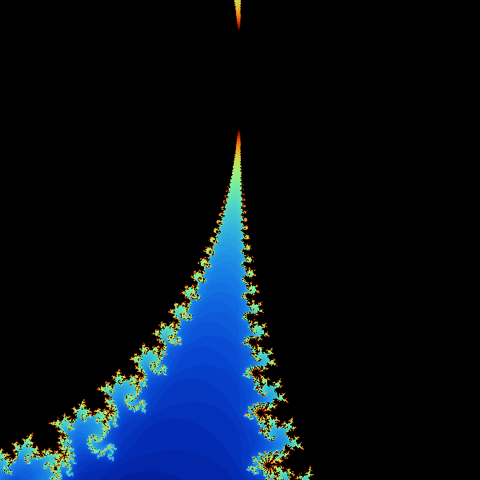
Other things you can try (remember to run add after each change):
- Change both
100s to20. The edge loses detail, because the points have fewer turns to show whether they escape. - In
Palette, swapredandbluein the last line. The fractal goes from blue to orange.
Challenge: stop it stretching#
In a wide window the fractal comes out stretched:
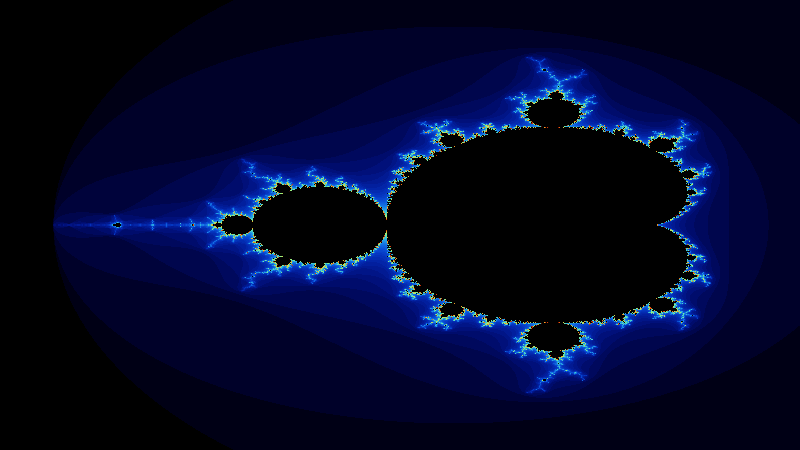
You already know how to fix it: you did it with the circle. Try it yourself before looking at the solution. You need three things: declare the Data uniform (with its using), compute the aspect, and use it in cx. And so the fractal stays centered, it helps to measure from the center of the window (Uv.X - 0.5f), as in the coordinates chapter.
One possible solution: declare the uniform in the Mandelbrot class, as always,
    [uniform, layout(0, 0)]
public Context Data; [cbuffer, register("b0")]
public Context Data; [constant, buffer(0)]
public Context Data; [uniform, @group(0), @binding(0)]
public Context Data; [Uniform, DescriptorSet(0), Binding(0)]
public Context Data;and replace the two lines of cx and cy with these three:
float aspect = Data.Width / Data.Height;
float cx = (pixel.Uv.X - 0.5f) * 3f * aspect - 0.7f;
float cy = (pixel.Uv.Y - 0.5f) * 3f;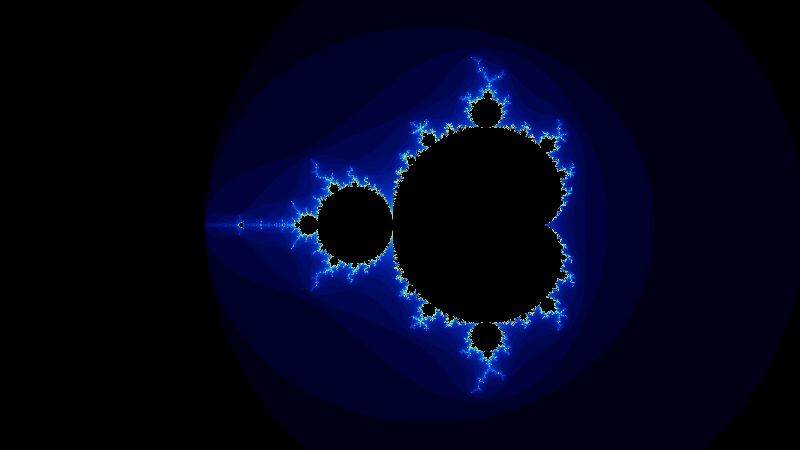
The numbers 3f and -0.7f are the ones that used to come from the 3f and the -2.2f: the 3 is how much of the plane is seen in height, and the -0.7 is the center of the view horizontally.
What you can use inside a shader and what you cannot#
You have seen that a lot of C# works. This is the summary:
| You can | You cannot | ||
|---|---|---|---|
float, int, uint, bool | string, double, object | ||
vec2, vec3, vec4 and your own structs | Classes, lists, dictionaries | ||
if, else, for, while, break, continue | try, catch, foreach over lists | ||
Calling your own static functions | A function calling itself (recursion) | ||
+, -, *, /, %, comparisons, &&, ` | ` | new on objects, async, lambdas |
The general rule is the one from the first chapter: the GPU only knows how to do calculations. If something needs memory that grows, text or the operating system, it does not exist there.
What you learned#
- Inside a shader you can use
if,while,forandbreak. - You can split your shader into
staticfunctions. They take no attribute. - Each pixel runs its own loop, all of them at once.
- To go from
Uvto another range: multiply to stretch and add or subtract to move. - Be careful when dividing integers: use
100f, not100.
Next: Shader 3: a neon ring.