Shader 3: a neon ring
The math functions the GPU already has, used to draw a glowing ring.
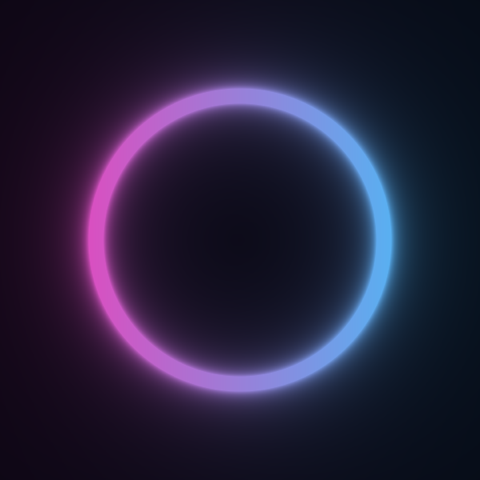
So far you did every calculation with additions, subtractions and multiplications. But the GPU already comes with many math functions built in: square root, sine, absolute value, mixing two colors... In this chapter you will use them to draw a neon tube:
How the GPU's functions are used#
They are all in a class called Math, inside YotsubaShader.GlslSyntax.Methods. Since you will use them all the time, the comfortable thing is to put this line at the top of the file:
using static YotsubaShader.GlslSyntax.Methods.Math;A using static lets you call the methods of a class without writing its name in front. So instead of Math.sqrt(x) you just write sqrt(x).
These are the four you will use in this shader:
| Function | What it does | Example |
|---|---|---|
sqrt(x) | The square root. | sqrt(9f) gives 3 |
abs(x) | Removes the sign from a number. | abs(-0.2f) gives 0.2 |
clamp(x, minimum, maximum) | If x goes past the limits, it leaves it at the limit. | clamp(7f, 0f, 1f) gives 1 |
mix(a, b, t) | Mixes a and b. With t at 0 it gives a, with 1 it gives b, with 0.5 half of each. | mix(0f, 10f, 0.5f) gives 5 |
Step 1: how far each pixel is from the center#
A ring is a circle, and to draw a circle you need to know how far from the center each pixel is.
First we move the center. With Uv, the point (0, 0) is the top left corner. It suits us better for (0, 0) to be the center of the screen. It is the stretch-and-move calculation you already know:
float x = pixel.Uv.X * 2f - 1f;
float y = pixel.Uv.Y * 2f - 1f;
Now x and y go from -1 to 1, and the center of the screen is (0, 0).
The distance from a point to the center is calculated with the Pythagorean theorem, the one about the triangle from school: the square root of x times x plus y times y.
float distanceToCenter = sqrt(x * x + y * y);If you painted each pixel with that number as its color (farther away, whiter), you would see this:

Black in the center, because the distance is 0. Lighter and lighter as you move away.
Step 2: how far each pixel is from the ring#
We want a ring of radius 0.6. The pixels that form the ring are the ones at a distance of 0.6 from the center. So we subtract:
float distanceToRing = abs(distanceToCenter - 0.6f);If a pixel is at 0.6 from the center, the result is 0: it is right on the ring. If it is at 0.8, it gives 0.2. And if it is at 0.4, the subtraction gives -0.2, but abs removes the sign and it becomes 0.2. That is, we do not care whether the pixel is inside or outside the ring: we only care how far it is from reaching it.
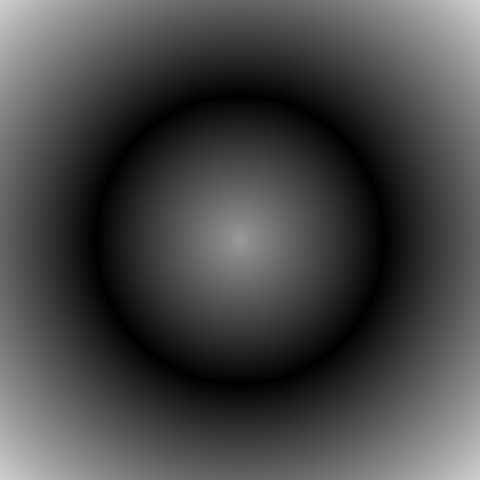
You can already see the ring: it is the black line, where the distance is 0.
Step 3: turning the distance into glow#
We want the opposite of the previous image: lots of light on the ring and little far from it. There is a widely used trick for that, which is to divide a small number by the distance:
float glow = clamp(0.03f / distanceToRing, 0f, 1f);Think about what happens with the division:
| Distance to the ring | 0.03 / distance | Glow after clamp |
|---|---|---|
0.01 (almost on it) | 3 | 1 |
0.03 | 1 | 1 |
0.1 | 0.3 | 0.3 |
0.5 (far) | 0.06 | 0.06 |
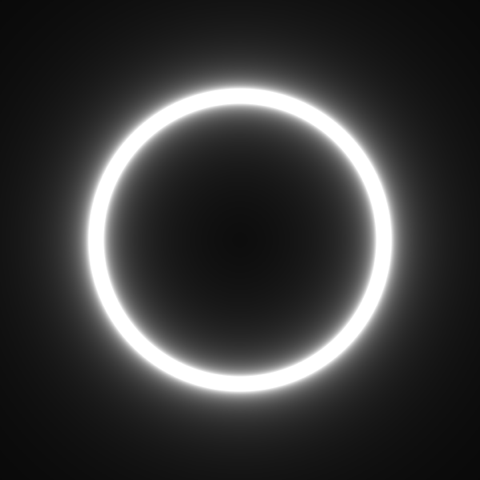
Near the ring the result is huge, and clamp leaves it at 1, which is the maximum. As you move away it drops fast, but never quite reaches zero. That light fading out little by little is what makes it look like neon and not a plain line.
Step 4: giving it color#
We have a glow from 0 to 1. What is left is deciding what color the light is and what color the background is. This is where mix comes in, which also works with colors:
vec3 pink = Make.Vec3(1f, 0.2f, 0.7f);
vec3 cyan = Make.Vec3(0.2f, 0.8f, 1f);
vec3 tube = mix(pink, cyan, pixel.Uv.X);
mix(pink, cyan, pixel.Uv.X) gives pink on the left of the screen (where Uv.X is 0), cyan on the right (where it is 1) and a blend in the middle. It is the gradient from the first shader, done with a single function.
And now we mix again, between the background and the tube, using the glow:
vec3 background = Make.Vec3(0.02f, 0.02f, 0.06f);
vec3 color = mix(background, tube, glow);
Where the glow is 0, the background comes out. Where it is 1, the color of the tube comes out. In the halo, a blend.
We use vec3 because a color, while you are calculating it, does not need opacity. We add it at the end, when returning it.
The complete shader#
using YotsubaShader.GlslSyntax;
using YotsubaShader.GlslSyntax.Types;
using YotsubaShader.Language;
using static YotsubaShader.GlslSyntax.Methods.Math;

namespace MyShaders;

public class Neon
{
    [ShaderStage(Stage.Vertex)]
    public Pixel Vertex(GodotVertex corner)
    {
        Pixel pixel;
        pixel.Position = Make.Vec4(corner.VERTEX.X, corner.VERTEX.Y, 0f, 1f);
        pixel.Uv = corner.UV;
        return pixel;
    }

    [ShaderStage(Stage.Fragment)]
    [return: location(0)]
    public vec4 Fragment(PixelIn pixel)
    {
        float x = pixel.Uv.X * 2f - 1f;
        float y = pixel.Uv.Y * 2f - 1f;

        float distanceToCenter = sqrt(x * x + y * y);
        float distanceToRing = abs(distanceToCenter - 0.6f);

        float glow = clamp(0.03f / distanceToRing, 0f, 1f);

        vec3 pink = Make.Vec3(1f, 0.2f, 0.7f);
        vec3 cyan = Make.Vec3(0.2f, 0.8f, 1f);
        vec3 tube = mix(pink, cyan, pixel.Uv.X);

        vec3 background = Make.Vec3(0.02f, 0.02f, 0.06f);
        vec3 color = mix(background, tube, glow);

        return Make.Vec4(color.X, color.Y, color.Z, 1f);
    }
}using YotsubaShader.HlslSyntax;
using YotsubaShader.GlslSyntax.Types;
using YotsubaShader.Language;
using static YotsubaShader.GlslSyntax.Methods.Math;
namespace MyShaders;
public class Neon
{
[ShaderStage(Stage.Vertex)]
public Pixel Vertex(GodotVertex corner)
{
Pixel pixel;
pixel.Position = Make.Vec4(corner.VERTEX.X, corner.VERTEX.Y, 0f, 1f);
pixel.Uv = corner.UV;
return pixel;
}
[ShaderStage(Stage.Fragment)]
[return: SV_Target]
public vec4 Fragment(PixelIn pixel)
{
float x = pixel.Uv.X * 2f - 1f;
float y = pixel.Uv.Y * 2f - 1f;
float distanceToCenter = sqrt(x * x + y * y);
float distanceToRing = abs(distanceToCenter - 0.6f);
float glow = clamp(0.03f / distanceToRing, 0f, 1f);
vec3 pink = Make.Vec3(1f, 0.2f, 0.7f);
vec3 cyan = Make.Vec3(0.2f, 0.8f, 1f);
vec3 tube = mix(pink, cyan, pixel.Uv.X);
vec3 background = Make.Vec3(0.02f, 0.02f, 0.06f);
vec3 color = mix(background, tube, glow);
return Make.Vec4(color.X, color.Y, color.Z, 1f);
}
}using YotsubaShader.MslSyntax;
using YotsubaShader.GlslSyntax.Types;
using YotsubaShader.Language;
using static YotsubaShader.GlslSyntax.Methods.Math;
namespace MyShaders;
public class Neon
{
[ShaderStage(Stage.Vertex)]
public Pixel Vertex(GodotVertex corner)
{
Pixel pixel;
pixel.Position = Make.Vec4(corner.VERTEX.X, corner.VERTEX.Y, 0f, 1f);
pixel.Uv = corner.UV;
return pixel;
}
[ShaderStage(Stage.Fragment)]
[return: color(0)]
public vec4 Fragment(PixelIn pixel)
{
float x = pixel.Uv.X * 2f - 1f;
float y = pixel.Uv.Y * 2f - 1f;
float distanceToCenter = sqrt(x * x + y * y);
float distanceToRing = abs(distanceToCenter - 0.6f);
float glow = clamp(0.03f / distanceToRing, 0f, 1f);
vec3 pink = Make.Vec3(1f, 0.2f, 0.7f);
vec3 cyan = Make.Vec3(0.2f, 0.8f, 1f);
vec3 tube = mix(pink, cyan, pixel.Uv.X);
vec3 background = Make.Vec3(0.02f, 0.02f, 0.06f);
vec3 color = mix(background, tube, glow);
return Make.Vec4(color.X, color.Y, color.Z, 1f);
}
}using YotsubaShader.WgslSyntax;
using YotsubaShader.GlslSyntax.Types;
using YotsubaShader.Language;
using static YotsubaShader.GlslSyntax.Methods.Math;
namespace MyShaders;
public class Neon
{
[ShaderStage(Stage.Vertex)]
public Pixel Vertex(GodotVertex corner)
{
Pixel pixel;
pixel.Position = Make.Vec4(corner.VERTEX.X, corner.VERTEX.Y, 0f, 1f);
pixel.Uv = corner.UV;
return pixel;
}
[ShaderStage(Stage.Fragment)]
[return: location(0)]
public vec4 Fragment(PixelIn pixel)
{
float x = pixel.Uv.X * 2f - 1f;
float y = pixel.Uv.Y * 2f - 1f;
float distanceToCenter = sqrt(x * x + y * y);
float distanceToRing = abs(distanceToCenter - 0.6f);
float glow = clamp(0.03f / distanceToRing, 0f, 1f);
vec3 pink = Make.Vec3(1f, 0.2f, 0.7f);
vec3 cyan = Make.Vec3(0.2f, 0.8f, 1f);
vec3 tube = mix(pink, cyan, pixel.Uv.X);
vec3 background = Make.Vec3(0.02f, 0.02f, 0.06f);
vec3 color = mix(background, tube, glow);
return Make.Vec4(color.X, color.Y, color.Z, 1f);
}
}using YotsubaShader.SpirvSyntax;
using YotsubaShader.GlslSyntax.Types;
using YotsubaShader.Language;
using static YotsubaShader.GlslSyntax.Methods.Math;
namespace MyShaders;
public class Neon
{
[ShaderStage(Stage.Vertex)]
public Pixel Vertex(GodotVertex corner)
{
Pixel pixel;
pixel.Position = Make.Vec4(corner.VERTEX.X, corner.VERTEX.Y, 0f, 1f);
pixel.Uv = corner.UV;
return pixel;
}
[ShaderStage(Stage.Fragment)]
[return: Location(0)]
public vec4 Fragment(PixelIn pixel)
{
float x = pixel.Uv.X * 2f - 1f;
float y = pixel.Uv.Y * 2f - 1f;
float distanceToCenter = sqrt(x * x + y * y);
float distanceToRing = abs(distanceToCenter - 0.6f);
float glow = clamp(0.03f / distanceToRing, 0f, 1f);
vec3 pink = Make.Vec3(1f, 0.2f, 0.7f);
vec3 cyan = Make.Vec3(0.2f, 0.8f, 1f);
vec3 tube = mix(pink, cyan, pixel.Uv.X);
vec3 background = Make.Vec3(0.02f, 0.02f, 0.06f);
vec3 color = mix(background, tube, glow);
return Make.Vec4(color.X, color.Y, color.Z, 1f);
}
}To check that it is written correctly, build the C# project:
dotnet build MyShadersIf you get Build succeeded, the shader is valid C#. Once add supports these functions, it is compiled and used just like the previous two: new Neon().ToGlsl(Stage.Fragment).
Play with it#
- Change
0.6fto0.3ffor a smaller ring. - Change
pixel.Uv.Xtopixel.Uv.Yin the firstmix. The color change now goes from top to bottom. - Draw two rings: calculate a second glow with another radius and add them before mixing.
float bigGlow = clamp(0.03f / abs(distanceToCenter - 0.6f), 0f, 1f);
float smallGlow = clamp(0.03f / abs(distanceToCenter - 0.3f), 0f, 1f);
float glow = clamp(bigGlow + smallGlow, 0f, 1f);
What you learned#
- The GPU comes with math functions ready made. They are in
YotsubaShader.GlslSyntax.Methods.Mathand are used withusing static. - Almost any shape comes from a distance: you calculate how far each pixel is from the shape and turn that into color.
mixblends two numbers or two colors.clampkeeps a value between two limits.- Dividing a small number by a distance gives the effect of light fading out.
Next: Shader 4: a moving plasma.